
Trouble Viewing or Downloading a Form?
Follow these instructions to download a form.
Note: Forms cannot be filled out on a mobile or tablet device. Use a desktop PC or Mac to view and fill out a form.
Downloading a Form
| Step | Instructions | Visual Instructions |
|---|---|---|
| 1 | On a PC, right-click mouse on the link. Then select Save link as or On a MAC, hold Ctrl + Click and select Save linked file as. |

|
| 2 | The Downloads folder will open. Save the file there. |

|
| 3 | Open Adobe Acrobat Reader or Adobe Acrobat. You can download Acrobat Reader for a PC here and for a MAC here. | |
| 4 | In Acrobat Reader, click on File then Open. |
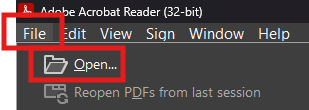
|
| 5 | Select your Downloads folder. Then select the file. |
|
Disable Your Web Browser’s Built-in PDF Viewer
Some forms cannot be viewed in a web browser and the following error message will be displayed. You can change your web browser's PDF viewer settings so the form can be opened in Adobe Reader. Instructions for each web browser are provided below.
For further assistance, please email HHS Form & Handbook Request.